


Installation Environment
- PC
- Google Chrome
- Microsoft Edge
- Smartphone / Tablet
- Safari on iOS / iPadOS
- Chrome and Edge on Android
*Behavior may vary depending on browser or OS version.
*Some browsers may display different wording, such as “Add to Home Screen” instead of “Install”.
Desktop installation
Currently, installing desktop PWAs is supported on Google Chrome and Microsoft Edge for Linux, Windows, macOS, and Chromebook. In these browsers, an install icon appears in the URL bar when the current site is installable.
- Click the install icon on the right side of the browser’s address bar.


- If a confirmation dialog appears (e.g., “Install”), click it.
- Once installation completes, it will be added to your desktop or app list.
Safari (iPhone / iPad)
- Tap the share icon at the bottom of the screen.
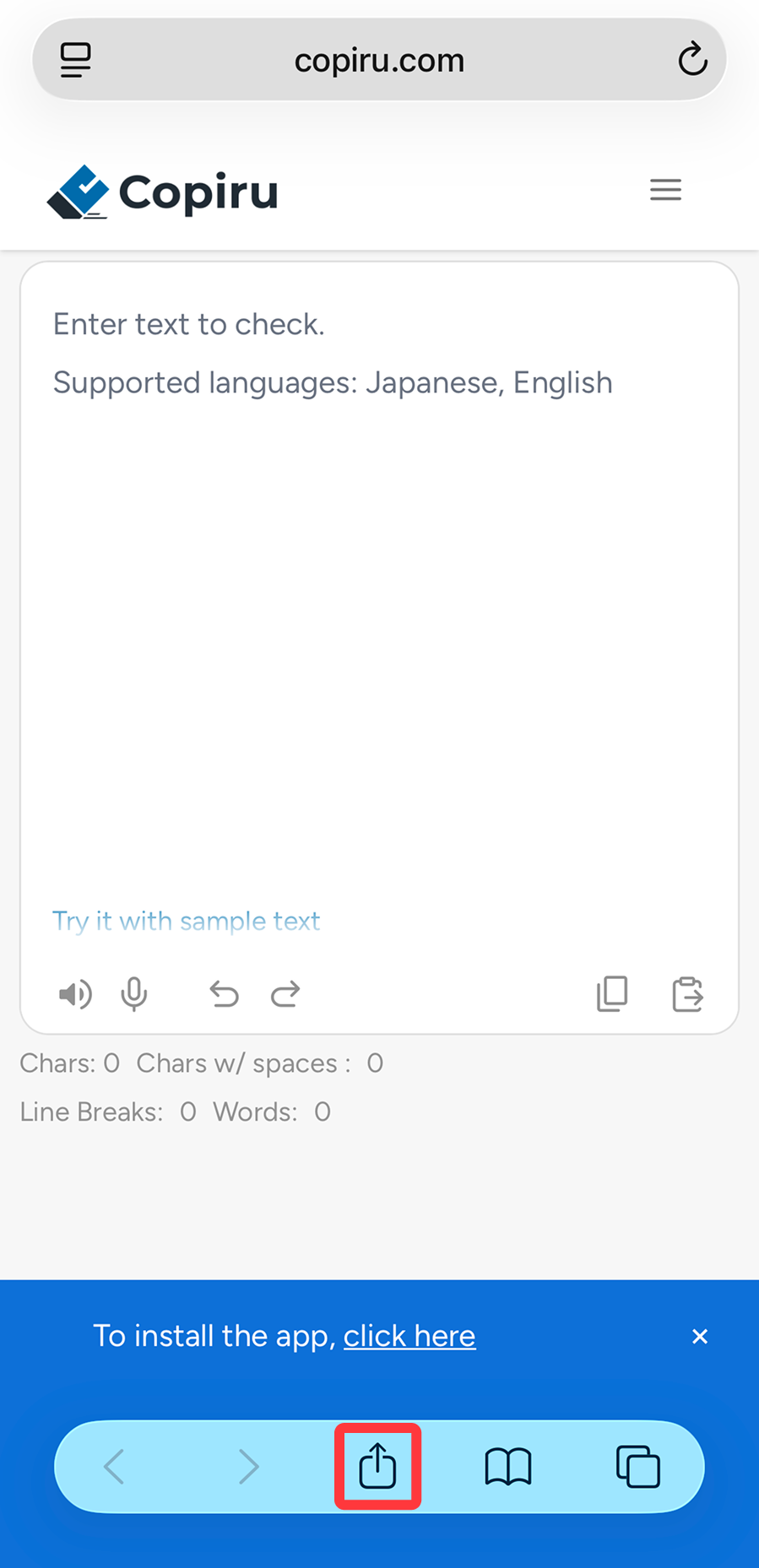
- From the menu that appears, select “More,” then “Add to Home Screen.”
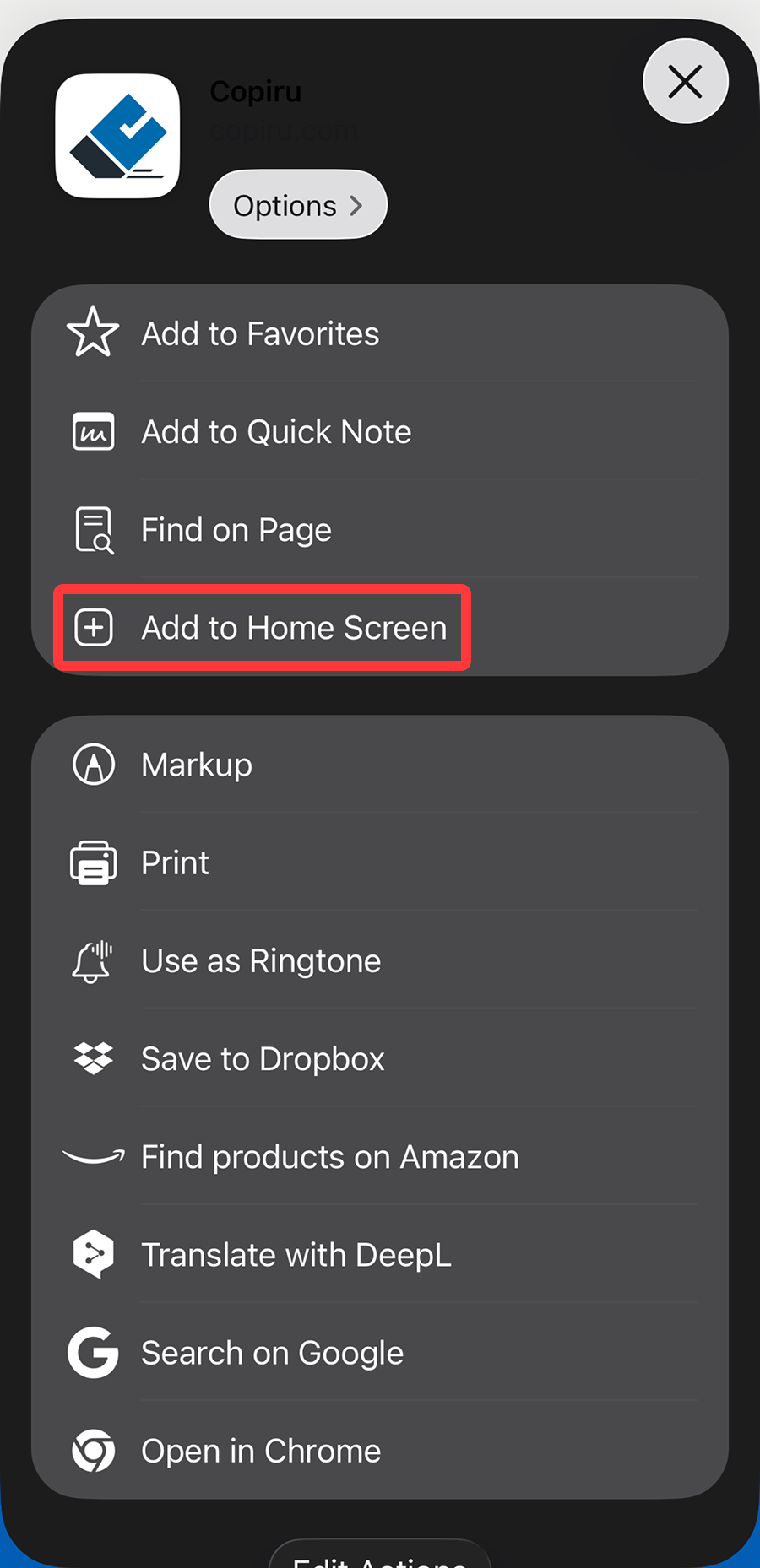
- Tap the “Add” button in the upper-right corner.
- Confirm that the shortcut icon has been added to your Home screen.
Chrome (iPhone / iPad)
- Tap the share icon in the upper-right corner of the screen.
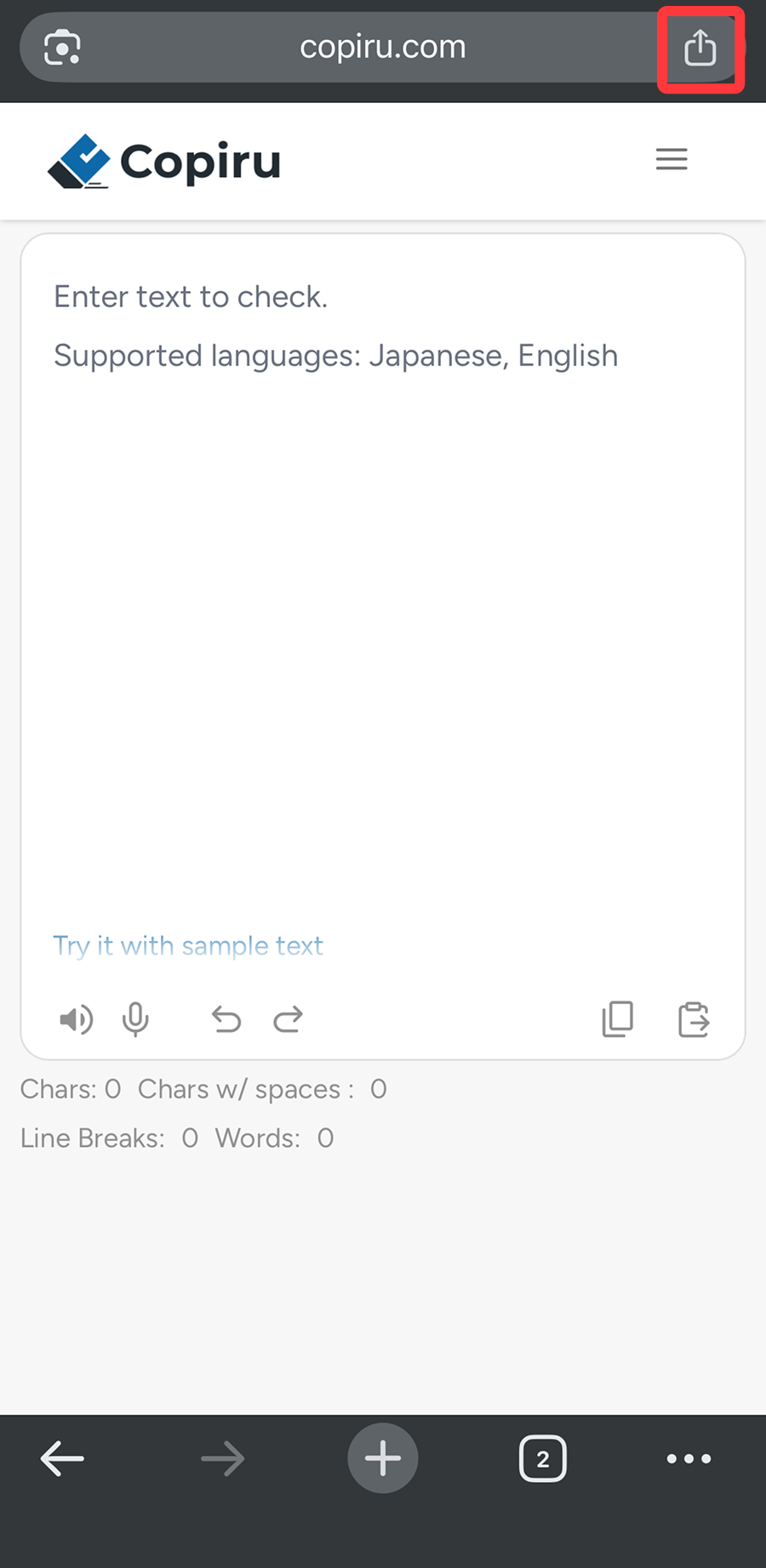
- From the menu that appears, select “More,” then “Add to Home Screen.”
- Tap the “Add” button in the upper-right corner.
- Confirm that the shortcut icon has been added to your Home screen.
Chrome (Android)
- Tap the three dots in the upper-right corner of the screen.
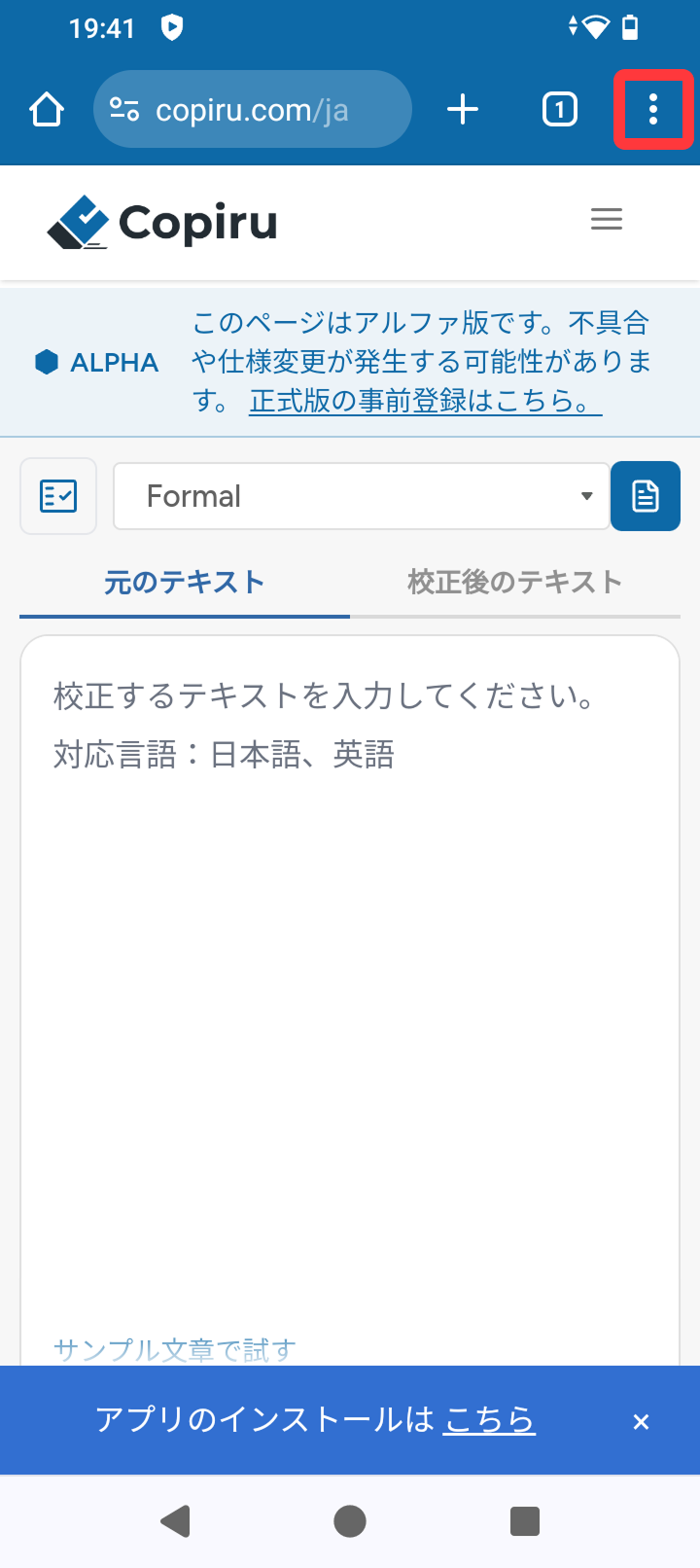
- Select “Add to Home Screen” from the displayed menu.
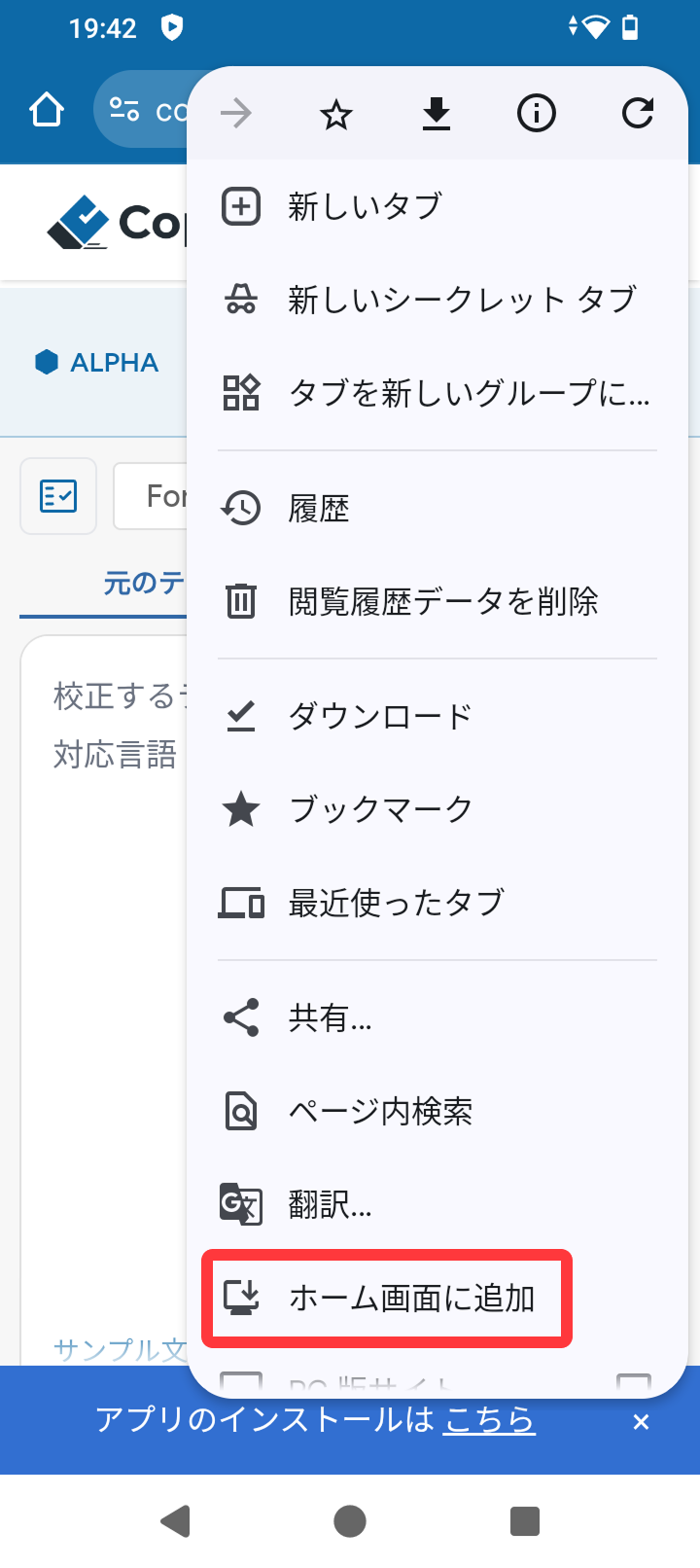
- Select Install from the “Add to Home Screen” option.
- Confirm that the shortcut icon has been added to your home screen.